

何度も何度もDocker RegistryをQNAP上で作ってみたがなかなか正解が見つからない。Container Stationを一切使わずにdockerコマンドでやれば簡単だったのだが、それだとNASっぽくない。
以下は、Container Stationをフルで使ってContainer Registryを作成する方法
閑話休題
今回作成するRegistryのコンセプトは、
-
なるべくContainer Stationを使い、SSHでの操作を最小限にする
-
知っている人は、dockerでも、docker composeでも使ってあげればいいですが(汗)でも、全体的には参考になるはず
-
Docker/Kubernetesホストに設定を極力加えないようにしたい。
-
https+認証付きにしておけば、ホストの変更もいらないし、本番適用しやすい
としたい。
用意するもの
DNS環境(地味に重要)
レジストリのFQDNとポートは、Dockerfileなどに記載されるため、後でホスト名やポートを変える、あるいは、頻繁に変わるなどしてしまうと、すべてのコードに記載されているFQDNやポートを変更する必要がある。これはKubernetsだとかなり致命的になる。利用するユーザもIPアドレスでアクセスしてしまうと、IPアドレスが変わってしまった瞬間コンテナコードの記載を書き換える必要がでててきしまう。
よって、レジストリのFQDNの命名とポート は、よく考えて、永続的に使うものとしておくこと。
例 ts453be.example.comという名前は不適格、registry1.example.comという名前にしておき、実際は、DNSのCNAMEでリダイレクトするようにしておく。できれば、ポート番号は、443にしたいところだが、QNAPのロードバランサーではできなかった。
QNAP NAS
CPUアーキテクチャ
AMD64なら確実だが、ARM64でもメモリがある程度あれば動くはず。32bit ARMは、Dockerが動けば動く可能性があるが、そもそもメモリが少なすぎてお勧めできない。
メモリ
最低でも4GBは必要。余裕をみて8GB以上あるといい。今はメモリが高いので標準搭載で8GB以上のものがいいが、古いNASでも満たせれば構わない。
NASのストレージ
HDDで構わないが、ファイルシステムは、Ext4一択。
大容量のRegistryを作るならばStorage Poolも分けたほうがいいかもしれないが個人利用なら既存のPoolでいいと思う。
RAIDレベルの規定はやはり個人レベルであれば特になし。
なぜ、Ext4なのか
docker Registryのファイルの動きは、COWのファイルシステムと相性が良くない。
厄介なのは、導入直後には問題が表面化しない点で、数か月〜年単位で使い続けた結果、削除済みレイヤーの断片化やメタデータ肥大化が蓄積し、原因が分かりにくい性能劣化として現れたりする
理由は本来、レジストリ側で管理していることをファイルシステム側で重ねて行われるからで、Ext4であれば挙動が単純なため、長期運用でも状態を予測しやすい。
事前準備
以下のページを参照して公的証明書やLets Encryptの設定をして、NASに証明書アクセスができるようにしておく。
NASの証明書を活用しまくる。QNAP編
どうしても自己証明書で行う場合は、DockerやKubernetsノードで自己証明書の設定をしておく必要がある。(地味に面倒)
QNAP 共有フォルダにファイル配置
1) 共有フォルダ作成
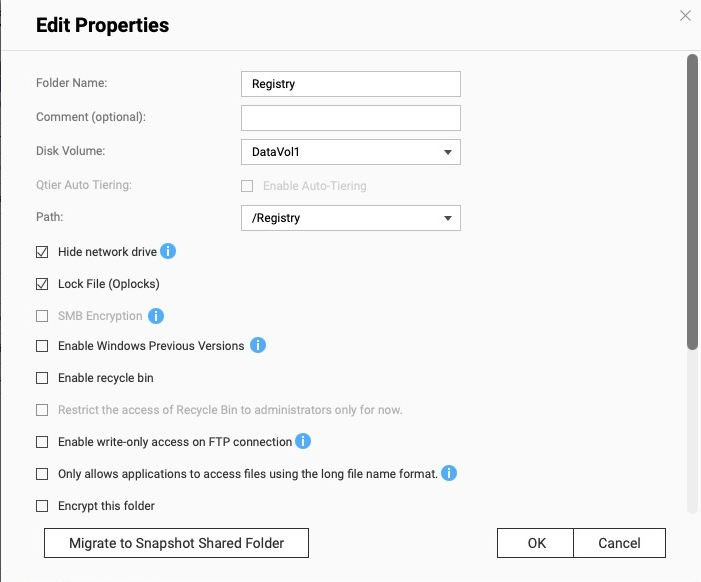
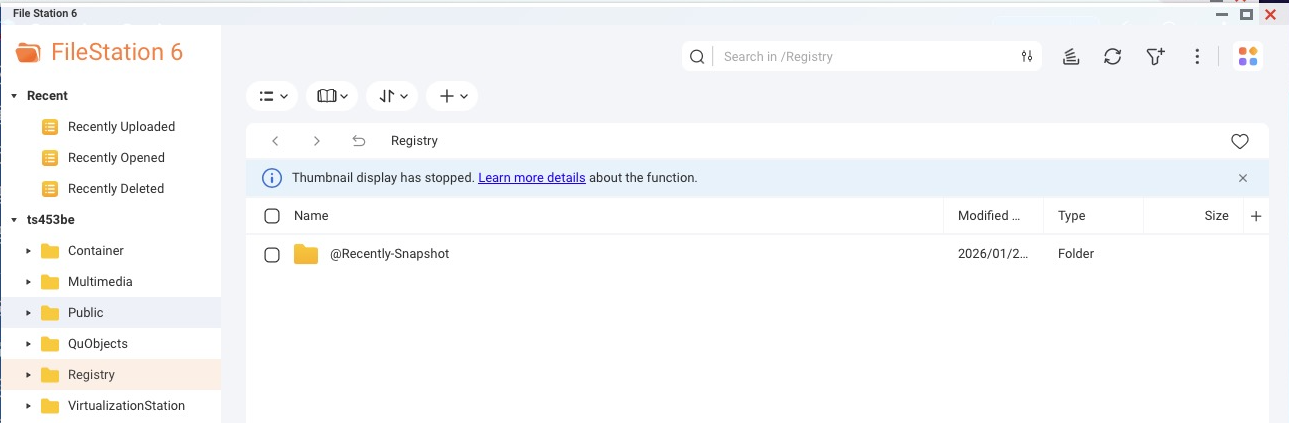
• 共有フォルダ:Registry (実態は パス:/share/Registry)
CIFSなどでアクセスする必要はないので、MSのネットワークから非表示にする
Windowsの過去バージョン機能やゴミ箱機能は必ず無効にしておく
2) フォルダ作成
NASにSSHでログインをして、以下を実行
sudo -i
mkdir -p /share/Registry/auth
mkdir -p /share/Registry/data/registry
3) htpasswd を作る
QNAPにはhtpasswdコマンドがないので、Container Station でapacheのコンテナを起動して、その中のhtpasswdコマンドを使う。
複数ユーザを登録する場合は、htpasswdファイルに追加すればいい。
cd /share/Registry
docker run –rm \
–entrypoint htpasswd \
httpd:2 \
-Bbn registryuser StrongPassword123 > auth/htpasswd
cat /share/Registry/auth/htpasswd
Registry 本体を Container Station で作成
QNAP Container Stationには、Registryサーバのテンプレートがある。
1) Image
• registry:2.8 (registry 2.8.1)
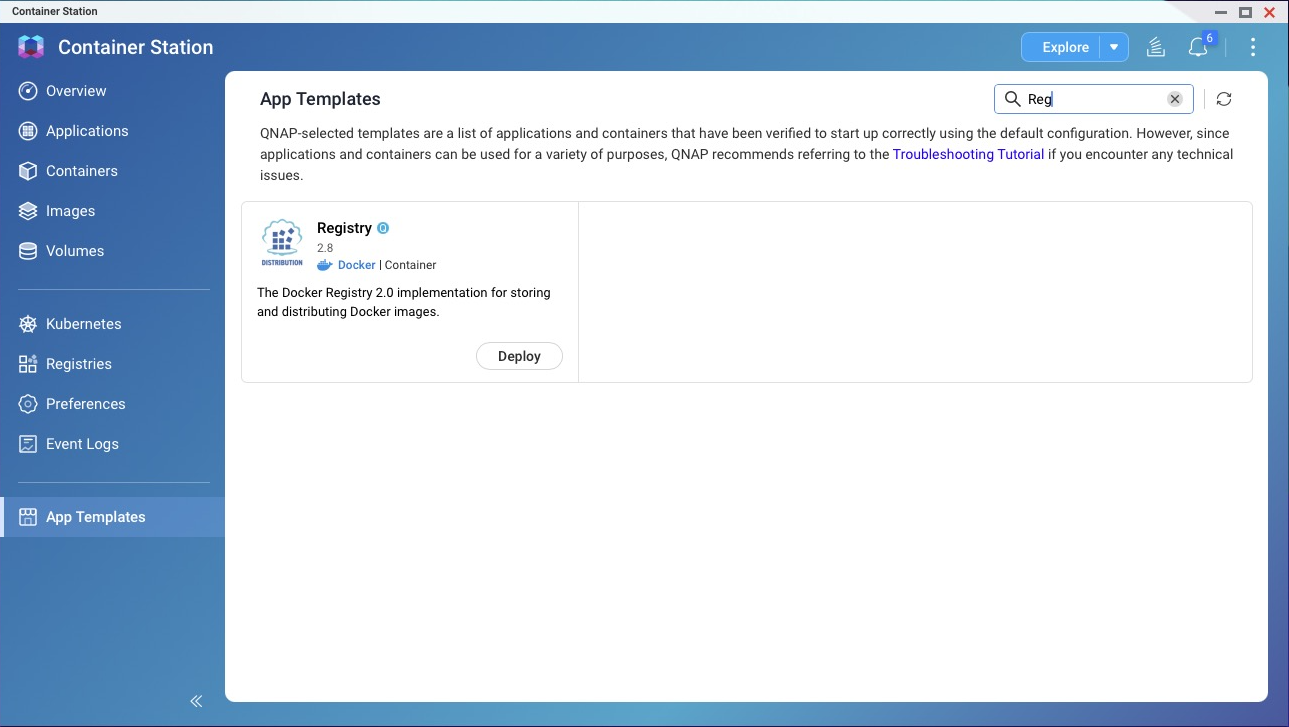
これをデプロイする
2) Network / Port
• Port mapping:
• Host 6000/tcp <- Container 5000/tcp
3) Restart policy
• Always / Unless-stopped
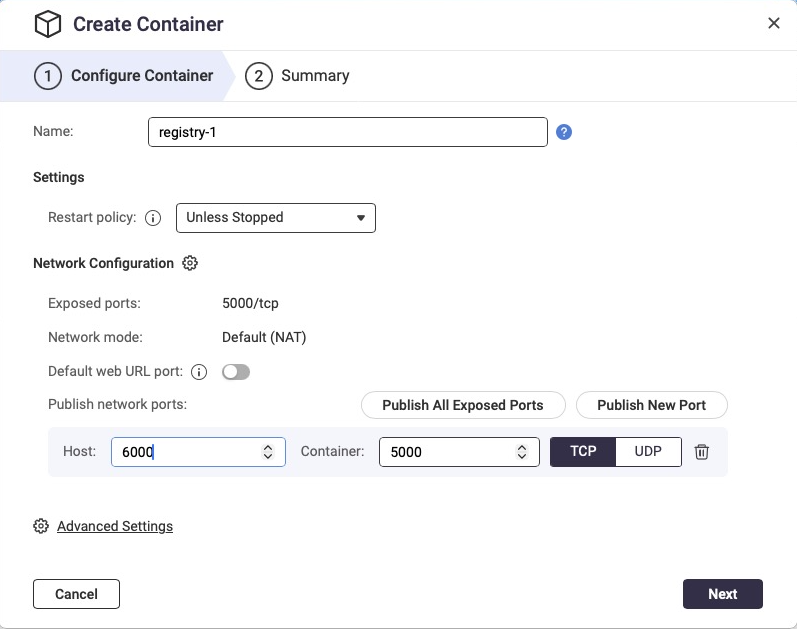
Advanced Settingをクリック
Commands
設定ファイルを書き換えたいならOverrideでファイルを指定して、設定ファイルをおく(理由がなければそのままでOK)
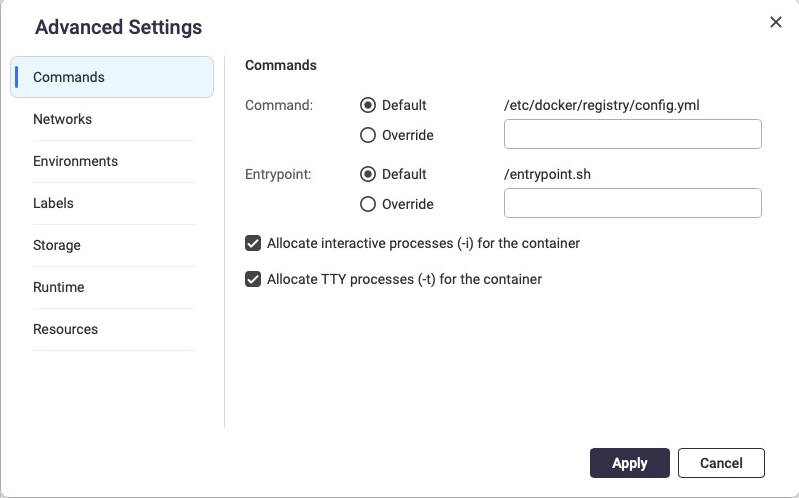
(参考)/etc/docker/registry/config.ymlの中身
# cat /etc/docker/registry/config.yml
version: 0.1
log:
fields:
service: registry
storage:
cache:
blobdescriptor: inmemory
filesystem:
rootdirectory: /var/lib/registry
http:
addr: :5000
headers:
X-Content-Type-Options: [nosniff]
health:
storagedriver:
enabled: true
interval: 10s
threshold: 3
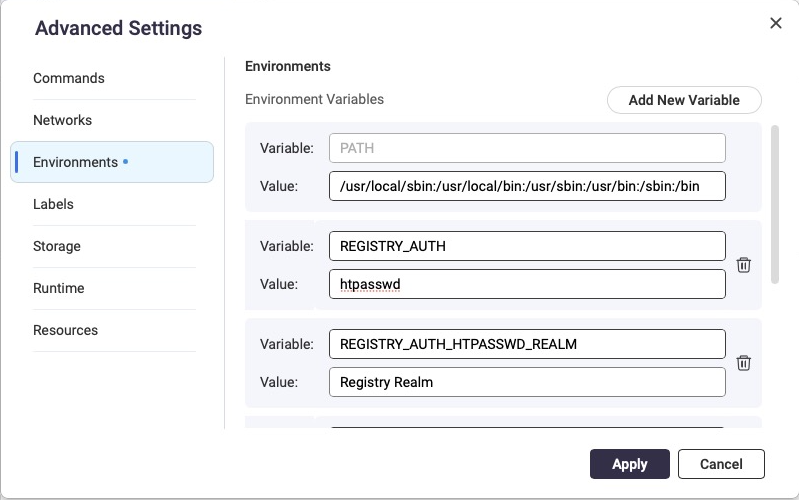
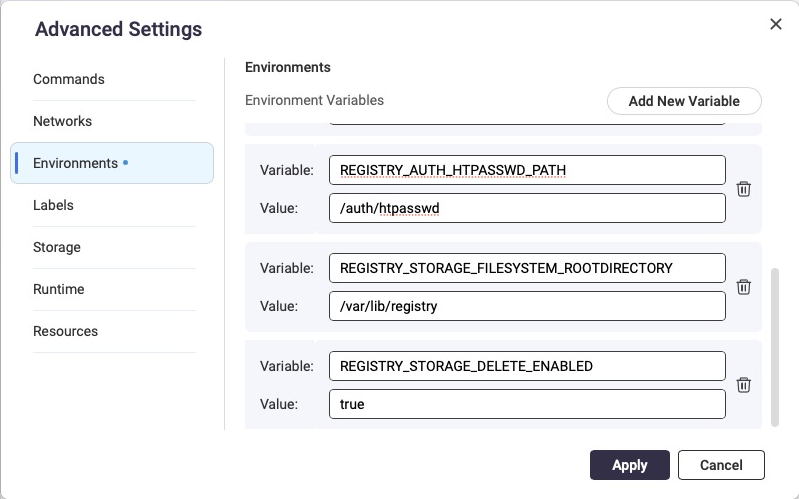
4) Environments(重要)
環境変数は認証の設定とRegistryのデータの削除ができるようにした。
以下を 環境変数に追加:
• REGISTRY_AUTH = htpasswd
• REGISTRY_AUTH_HTPASSWD_REALM = Registry Realm
• REGISTRY_AUTH_HTPASSWD_PATH = /auth/htpasswd
• REGISTRY_STORAGE_FILESYSTEM_ROOTDIRECTORY = /var/lib/registry
• REGISTRY_STORAGE_DELETE_ENABLED=true
3) Storage(重要)
Registry共有を指定する。Registryの実態、QNAPのローカルパスだと/share/Registryになる。
• Host: /share/Registry/data/registry → Container: /var/lib/registry
• Host: /share/Registry/auth → Container: /auth
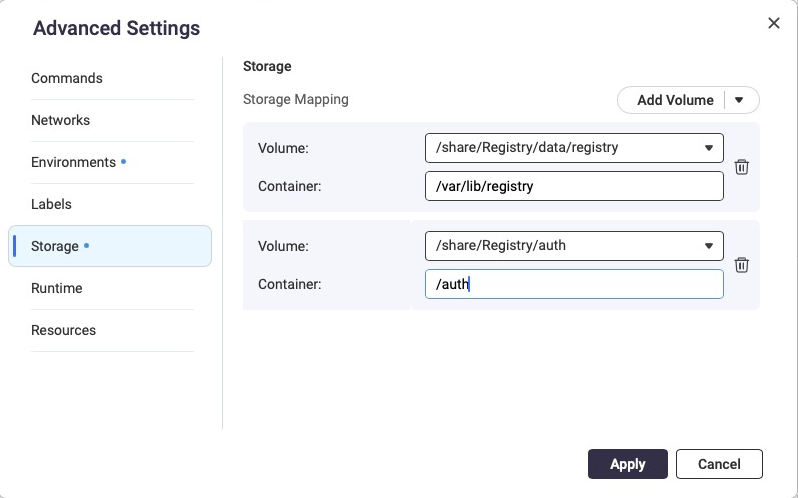
これでApplyをクリック
4) 起動
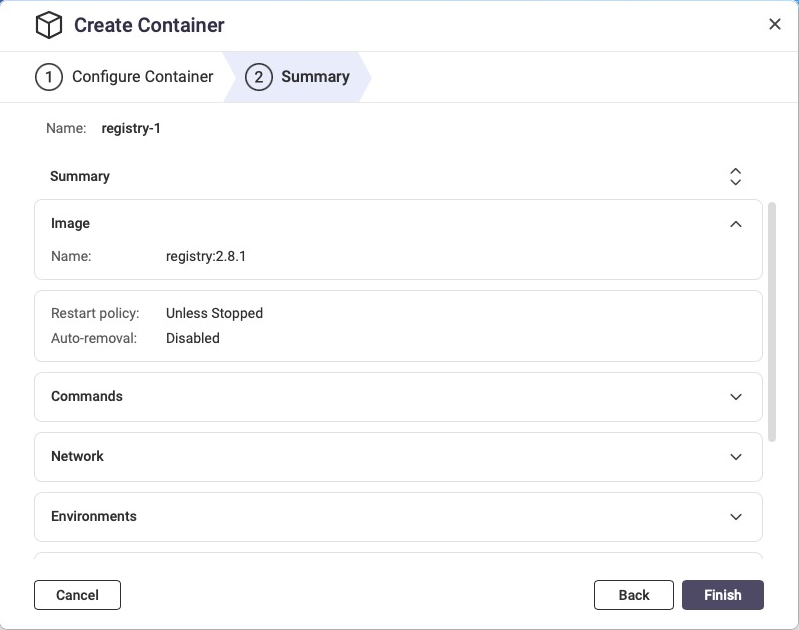
Finishで起動
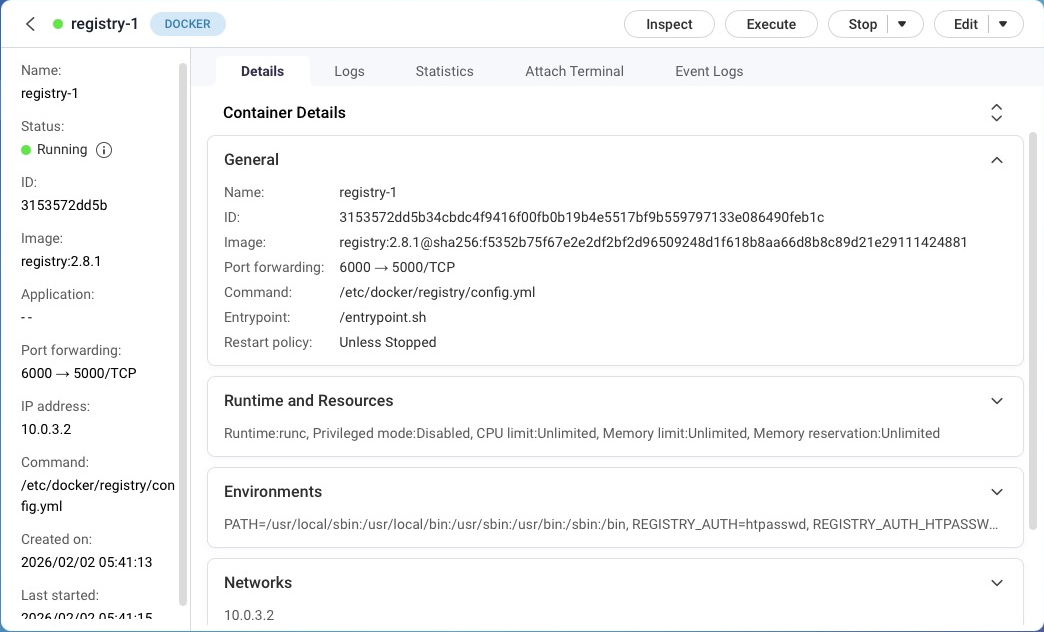
起動できているかログを確認
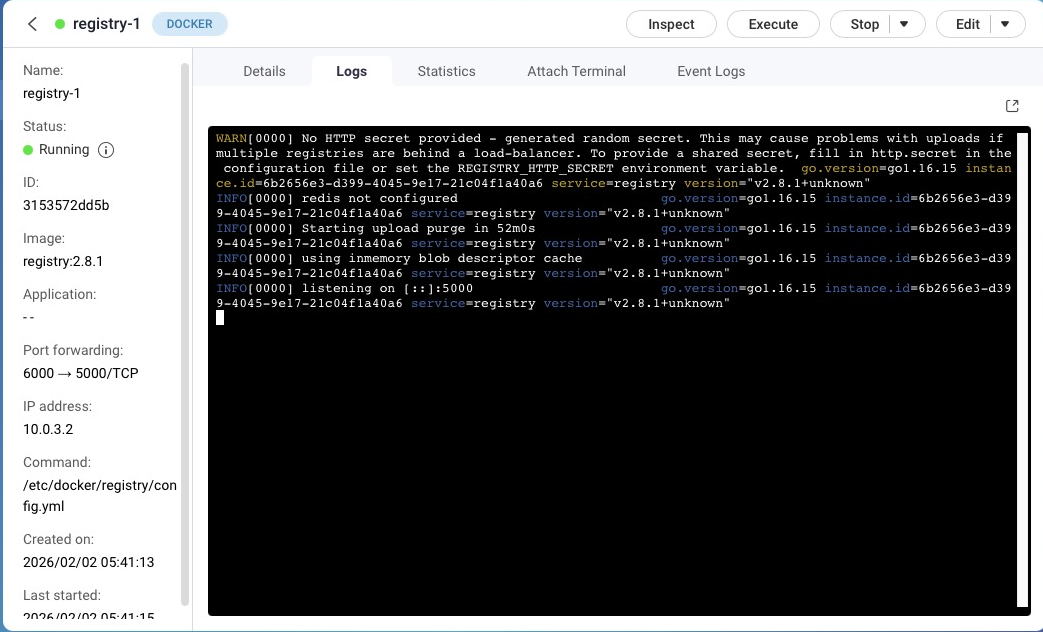
これでHTTPでTCP 6000で受ける認証付きのRegistryができた。(HTTPSではまだつながらない)
ちなみに、Container Stationでやっていることは以下と同等
docker run -d \
–name registry-1 \
–restart unless-stopped \
-p 6000:5000 \
-e REGISTRY_AUTH=htpasswd \
-e ‘REGISTRY_AUTH_HTPASSWD_REALM=Registry Realm’ \
-e REGISTRY_AUTH_HTPASSWD_PATH=/auth/htpasswd \
-e REGISTRY_STORAGE_FILESYSTEM_ROOTDIRECTORY=/var/lib/registry \
-e REGISTRY_STORAGE_DELETE_ENABLED=true \
-v /share/Registry/data/registry:/var/lib/registry \
-v /share/Registry/auth:/auth:ro \
registry:2.8.1
リバースプロキシの設定(https化)
Control Panel -> Network & File Service -> Network AccessでReverse Proxyを開く
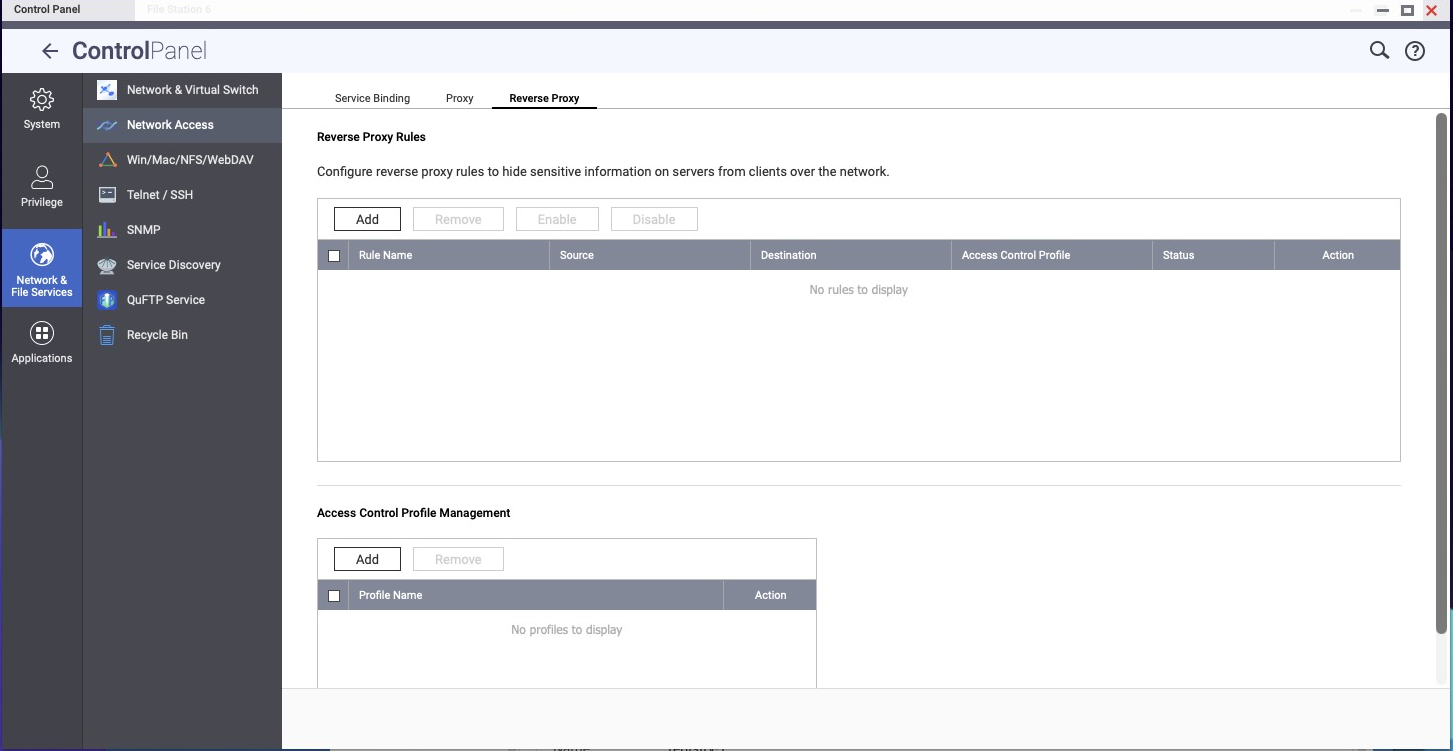
今の段階では、以下のポートの流れになっている。
クライアント — http(6000- Host) — http (5000 – container)
という流れになり、レジストリのホスト名は http://ts453be.example.com:6000
HTTPSで受けるようにする。その際、ポート番号は
クライアント — https(7000 – Reverse Proxy ) — http(6000- Host) — http (5000 – container)
という流れになり、レジストリのホスト名は https://ts453be.example.com:7000
以下のルールを作成する。
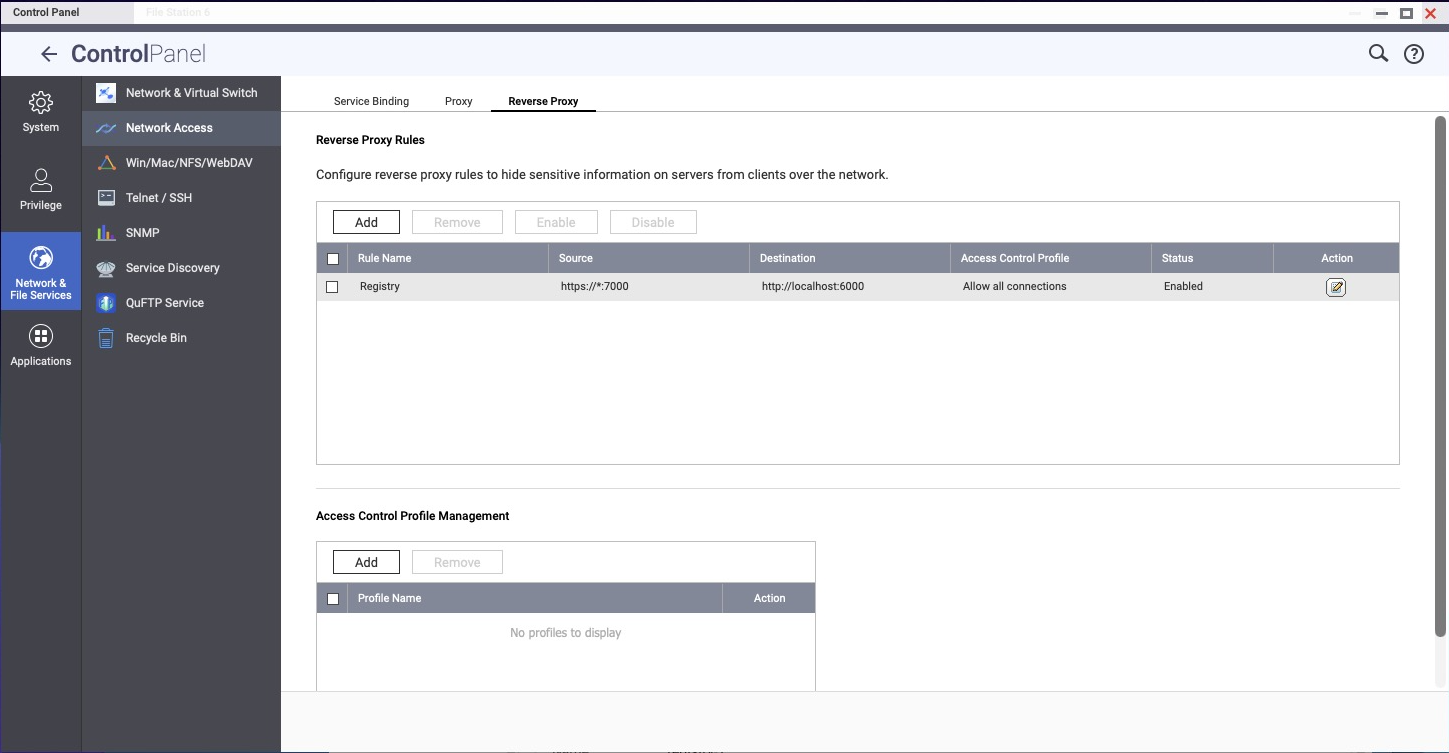
これでhttps://ts453be.example.com:7000でアクセスができるようになる。
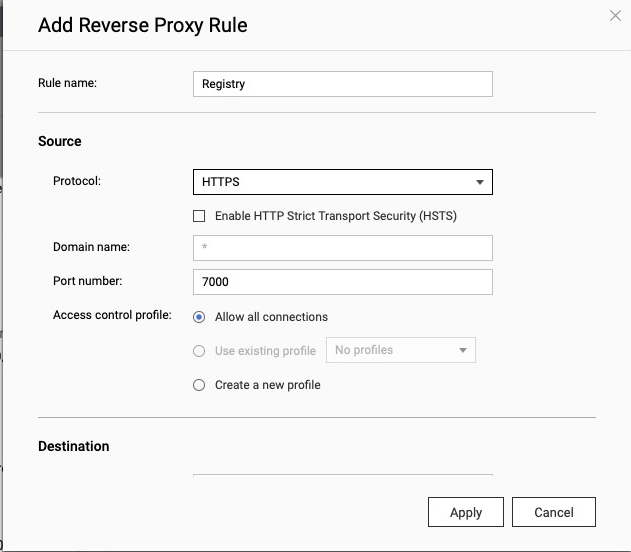
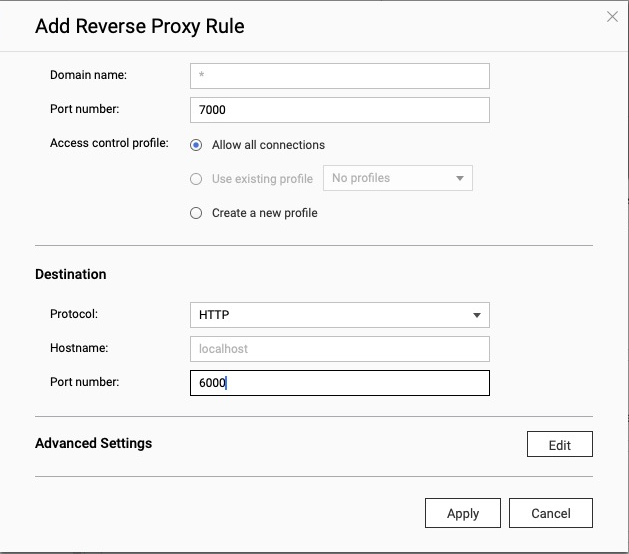
ルールが作成できた。
動作確認
コンテナの内部IPを調べる
[tmase@ts453be ~]$ docker network inspect bridge –format ‘{{(index .IPAM.Config 0).Gateway}} {{(index .IPAM.Config 0).Subnet}}’
10.0.3.1 10.0.3.0/24
[tmase@ts453be ~]$ docker exec -it registry-1 sh -lc ‘ip route | head -n 3’
default via 10.0.3.1 dev eth0
10.0.3.0/24 dev eth0 scope link src 10.0.3.2
[tmase@ts453be ~]$
10.0.3.1ということがわかる
QNAP の SSH と別ホストから
401 が返るか
[admin@ts453be ~]# curl -sI http://10.0.3.1:6000/v2/
HTTP/1.1 401 Unauthorized
Content-Type: application/json; charset=utf-8
Docker-Distribution-Api-Version: registry/2.0
Www-Authenticate: Basic realm=”Registry Realm”
X-Content-Type-Options: nosniff
Date: Sun, 01 Feb 2026 20:45:35 GMT
Content-Length: 87
[admin@ts453be ~]# curl -sI http://localhost:6000/v2/
HTTP/1.1 401 Unauthorized
Content-Type: application/json; charset=utf-8
Docker-Distribution-Api-Version: registry/2.0
Www-Authenticate: Basic realm=”Registry Realm”
X-Content-Type-Options: nosniff
Date: Sun, 01 Feb 2026 20:45:35 GMT
Content-Length: 87
[admin@ts453be ~]# curl -sI https://ts453be.example.com:7000/v2/
HTTP/1.1 401 Unauthorized
Date: Sun, 01 Feb 2026 20:44:21 GMT
Server: Apache/2.4.65 (Unix) OpenSSL/3.0.9
Strict-Transport-Security: max-age=0
Content-Type: application/json; charset=utf-8
Docker-Distribution-Api-Version: registry/2.0
Www-Authenticate: Basic realm=”Registry Realm”
X-Content-Type-Options: nosniff
Content-Length: 87
期待:
• HTTP/1.1 401 Unauthorized
• WWW-Authenticate: Basic realm=”Registry Realm”
認証付きで 200
[admin@ts453be ~]# curl -sI -u registryuser:StrongPassword123 http://10.0.3.1:6000/v2/
HTTP/1.1 200 OK
Content-Length: 2
Content-Type: application/json; charset=utf-8
Docker-Distribution-Api-Version: registry/2.0
X-Content-Type-Options: nosniff
Date: Sun, 01 Feb 2026 20:47:00 GMT
[admin@ts453be ~]# curl -sI -u registryuser:StrongPassword123 http://localhost:6000/v2/
HTTP/1.1 200 OK
Content-Length: 2
Content-Type: application/json; charset=utf-8
Docker-Distribution-Api-Version: registry/2.0
X-Content-Type-Options: nosniff
Date: Sun, 01 Feb 2026 20:47:00 GMT
[admin@ts453be ~]# curl -sI -u registryuser:StrongPassword123 https://ts453be.example.com:7000/v2/
HTTP/1.1 200 OK
Date: Sun, 01 Feb 2026 20:47:37 GMT
Server: Apache/2.4.65 (Unix) OpenSSL/3.0.9
Strict-Transport-Security: max-age=0
Content-Length: 2
Content-Type: application/json; charset=utf-8
Docker-Distribution-Api-Version: registry/2.0
X-Content-Type-Options: nosniff
期待:200 OK
実際にDockerから使ってみる。
注意:いろいろなところからDocker Registryにアクセスができる状態になっているが、アクセスできるところへ適当に接続すると、各ホストでのコンテナイメージの名前がばらけてしまう。
必ず ts453be.example.com:7000 だけを使うようにする。
以下は、ログインをしてhello-worldをpullして、レジストリにPushしているだけ。
#ユーザ名、パスワードを入れてログイン
docker login ts453be.example.com:7000
Username: registryuser
Password: StrongPassword123
WARNING! Your credentials are stored unencrypted in ‘/root/.docker/config.json’.
Configure a credential helper to remove this warning. See
https://docs.docker.com/go/credential-store/
Login Succeeded
docker pull hello-world
Using default tag: latest
latest: Pulling from library/hello-world
17eec7bbc9d7: Pull complete
ea52d2000f90: Download complete
Digest: sha256:05813aedc15fb7b4d732e1be879d3252c1c9c25d885824f6295cab4538cb85cd
Status: Downloaded newer image for hello-world:latest
docker.io/library/hello-world:latest
docker image tag hello-world:latest ts453be.example.com:7000/hello-world:latest
docker push ts453be.example.com:7000/hello-world:latest
The push refers to repository [ts453be.example.com:7000/hello-world]
17eec7bbc9d7: Pushed
latest: digest: sha256:2771e37a12b7bcb2902456ecf3f29bf9ee11ec348e66e8eb322d9780ad7fc2df size: 1035
i Info → Not all multiplatform-content is present and only the available single-platform image was pushed
sha256:05813aedc15fb7b4d732e1be879d3252c1c9c25d885824f6295cab4538cb85cd -> sha256:2771e37a12b7bcb2902456ecf3f29bf9ee11ec348e66e8eb322d9780ad7fc2df
docker image rm hello-world:latest
Untagged: hello-world:latest
docker image rm ts453be.example.com:7000/hello-world:latest
Untagged: ts453be.example.com:7000/hello-world:latest
Deleted: sha256:05813aedc15fb7b4d732e1be879d3252c1c9c25d885824f6295cab4538cb85cd
docker pull ts453be.example.com:7000/hello-world:latest
latest: Pulling from hello-world
17eec7bbc9d7: Pull complete
Digest: sha256:2771e37a12b7bcb2902456ecf3f29bf9ee11ec348e66e8eb322d9780ad7fc2df
Status: Downloaded newer image for ts453be.example.com:7000/hello-world:latest
ts453be.example.com:7000/hello-world:latest
docker image ls
i Info → U In Use
IMAGE ID DISK USAGE CONTENT SIZE EXTRA
ts453be.example.com:7000/hello-world:latest 2771e37a12b7 4.99kB 3.96kB
docker logout ts453be.example.com:7000
Removing login credentials for ts453be.example.com:7000
正しく動作すると実態のファイルは以下のようにできていく。しかし、決して触ってはいけない。
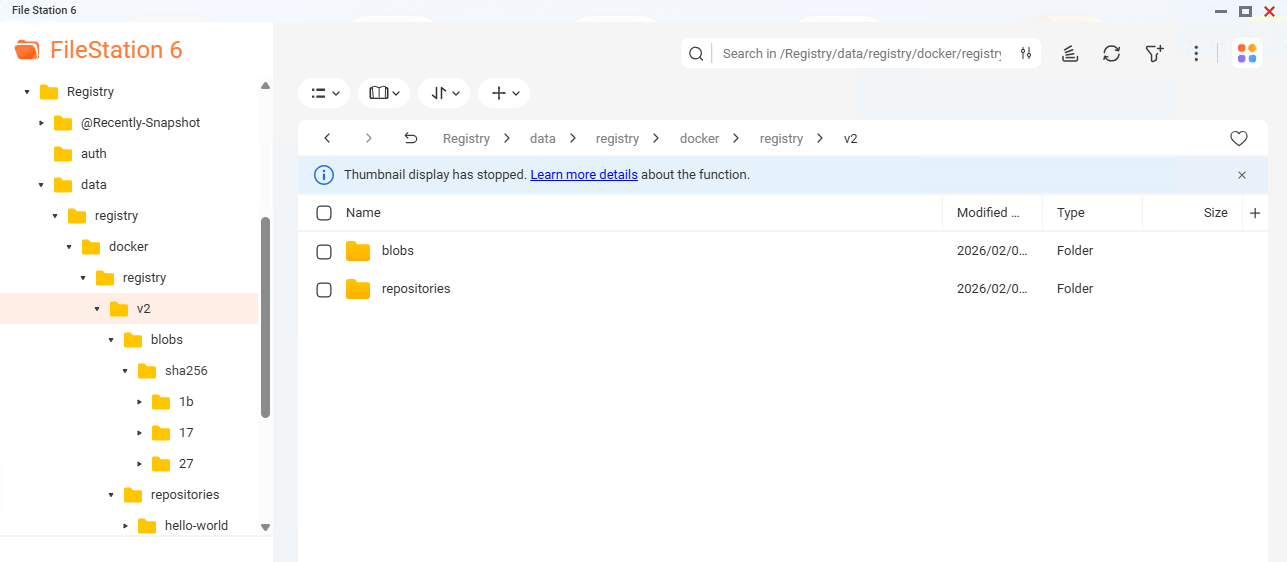
admin権限でファイルができるが、File Stationからも消せない。

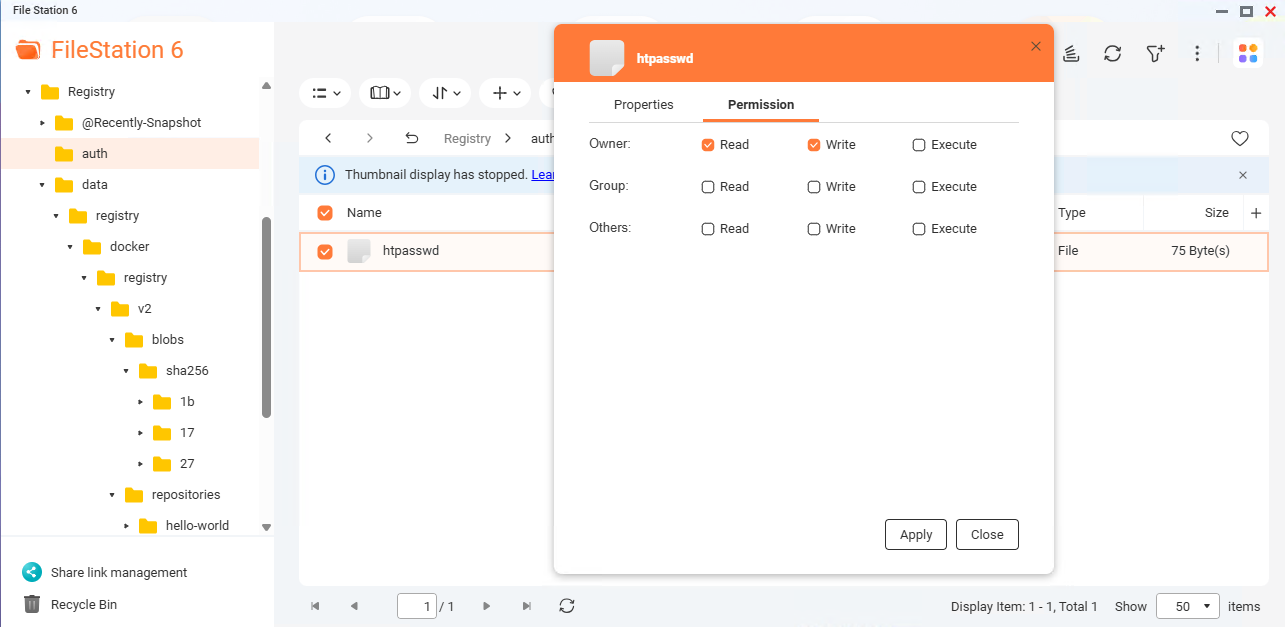
これでContainer Registryの作成が完了。
おまけ
Container RegistryのGUI
GUIが無くても困ることはないし、メインで使うことはないかもしれないが、何かとGUIがあると便利なので、Container RegistryのGUIを作る。
全体構成(いま → GUI追加)
[ Browser ]
|
| https://ts453be.example.com:7000 (既存 Registry)
| https://ts453be.example.com:7443 (← GUI 追加)
|
[ QNAP Reverse Proxy ]
|
+–> registry:6000
+–> registry-ui:80
※ Registry 本体は そのまま
※ GUI は 別コンテナ
GUI コンテナ設定(Container Station)
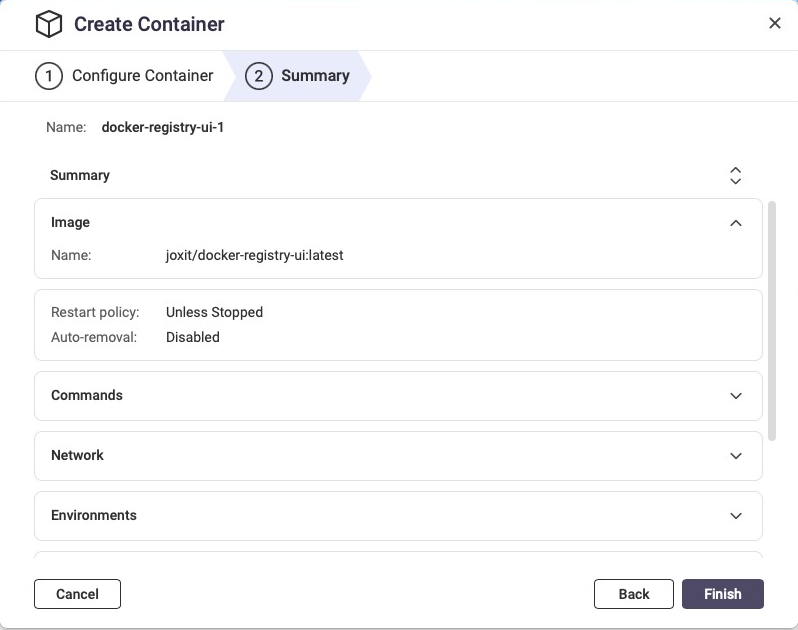
1️⃣ Image
joxit/docker-registry-ui:latest
必ずlatestを指定する。
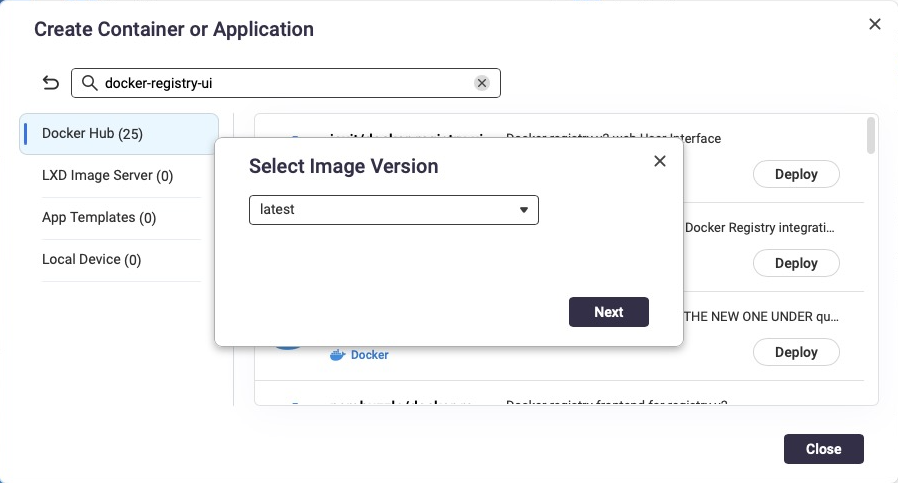
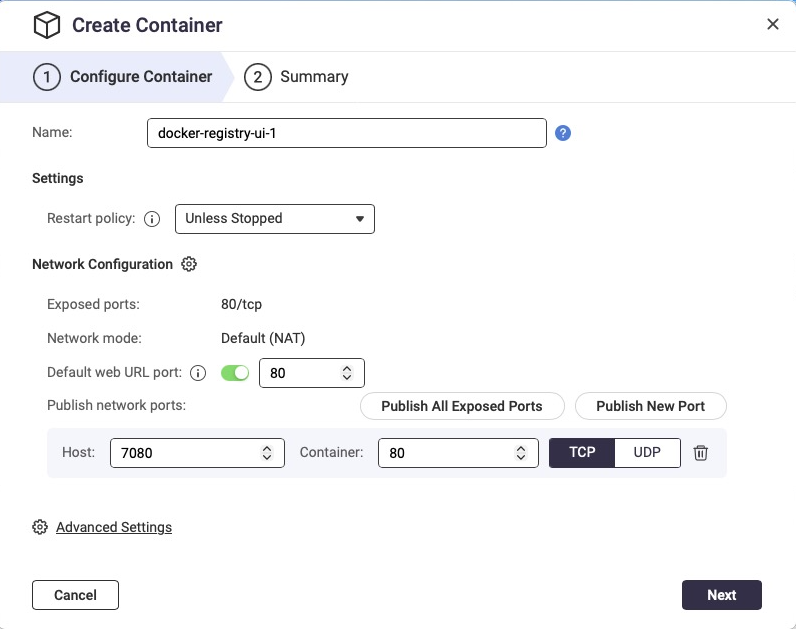
2️⃣ Network / Port
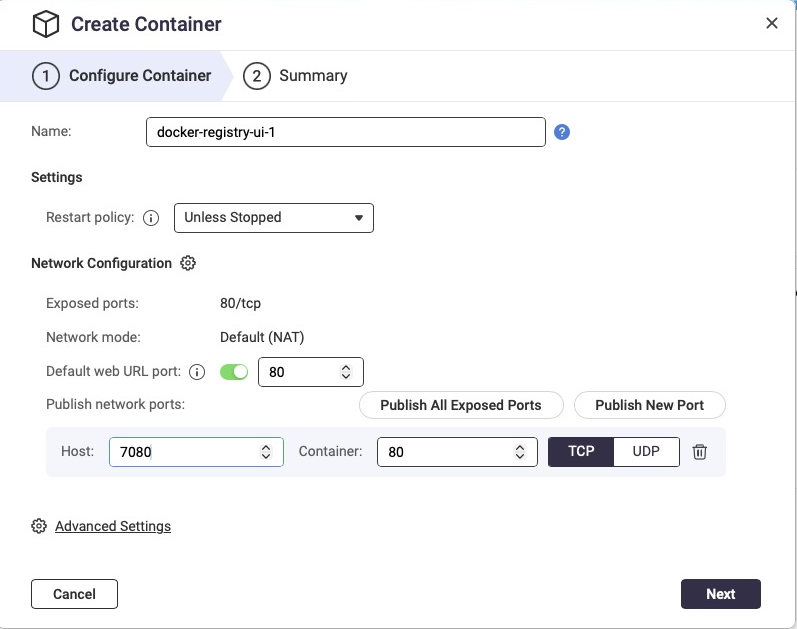
-
Container port: 80
-
Host port(例): 7080(内部用)
※ 外部公開は QNAP リバースプロキシで 7443 にするのが正解
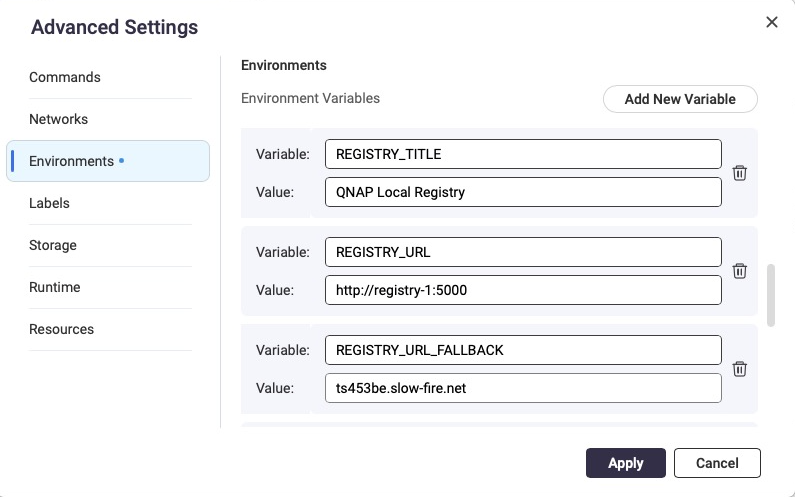
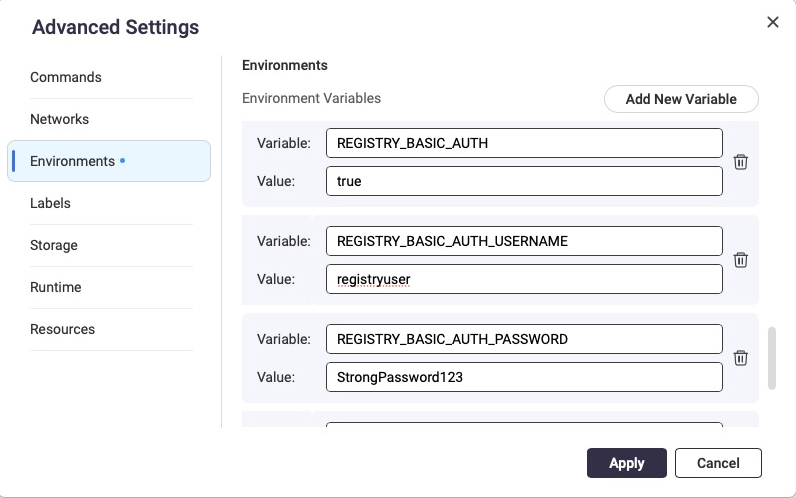
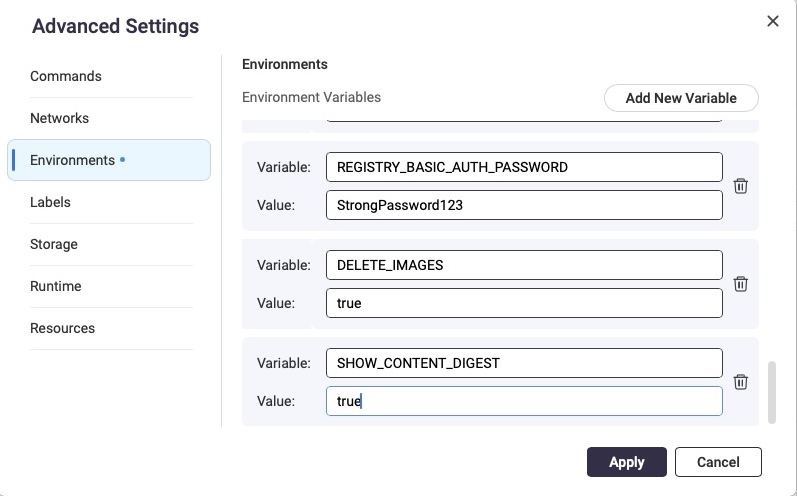
3️⃣ Environment(重要)
以下を環境変数に追加
REGISTRY_TITLE=QNAP Local Registry
NGINX_PROXY_PASS_URL=http://10.0.3.1:6000
REGISTRY_URL_FALLBACK=https://ts453be.example.com:7000
REGISTRY_BASIC_AUTH=true
REGISTRY_BASIC_AUTH_USERNAME=registryuser
REGISTRY_BASIC_AUTH_PASSWORD=StrongPassword123
DELETE_IMAGES=true
SHOW_CONTENT_DIGEST=true
5️⃣ 起動
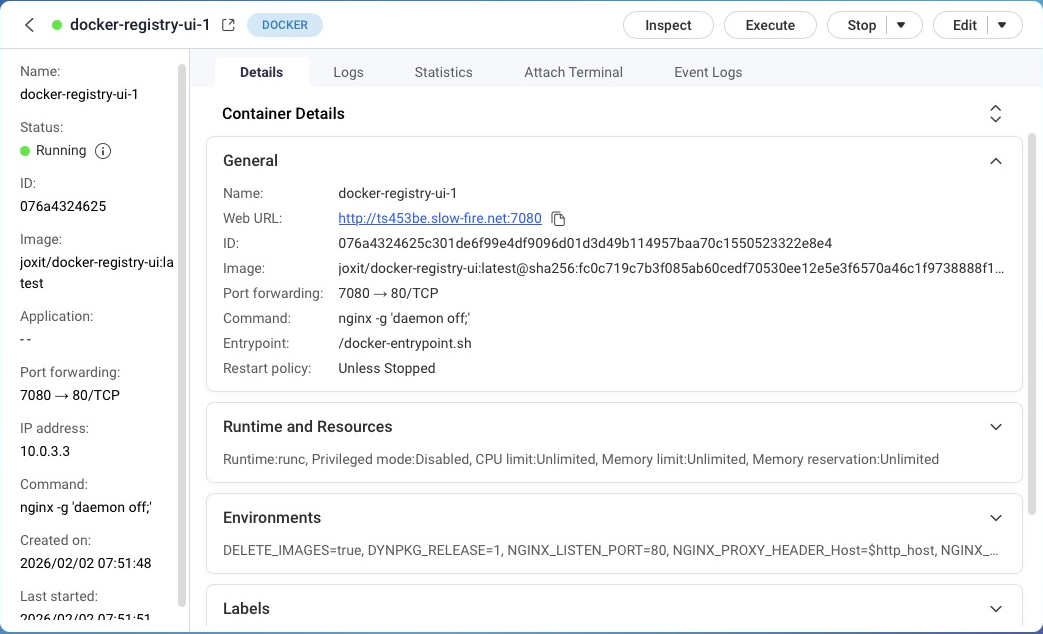
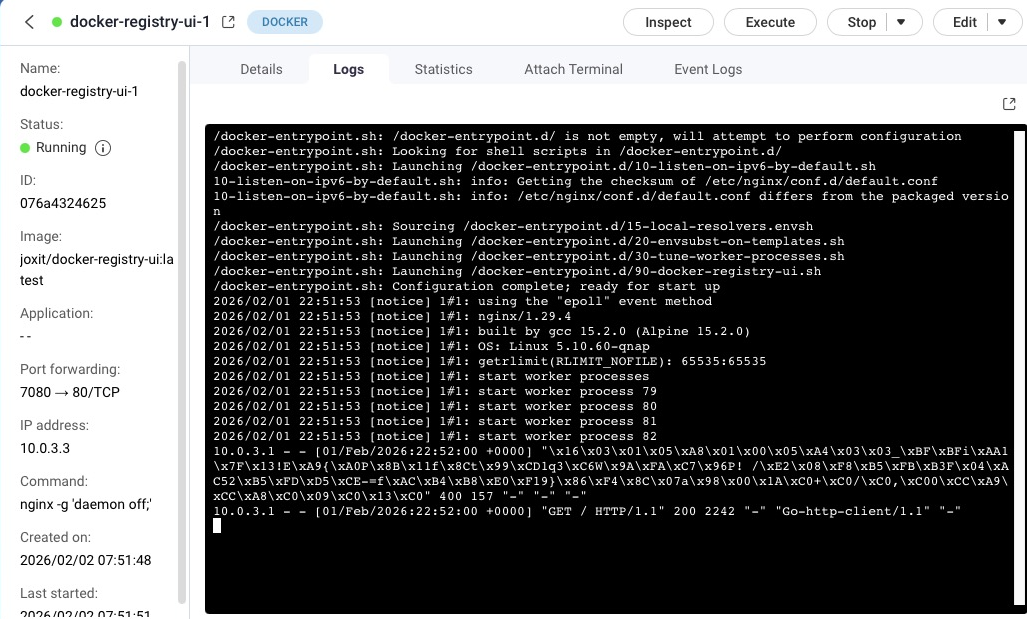
QNAP リバースプロキシ設定(GUI用)
新規ルール作成
|
項目
|
値
|
|---|---|
|
Source
|
|
|
Destination
|
|
|
Host header
|
保持(デフォルト)
|
※ Registry と同じ証明書で OK
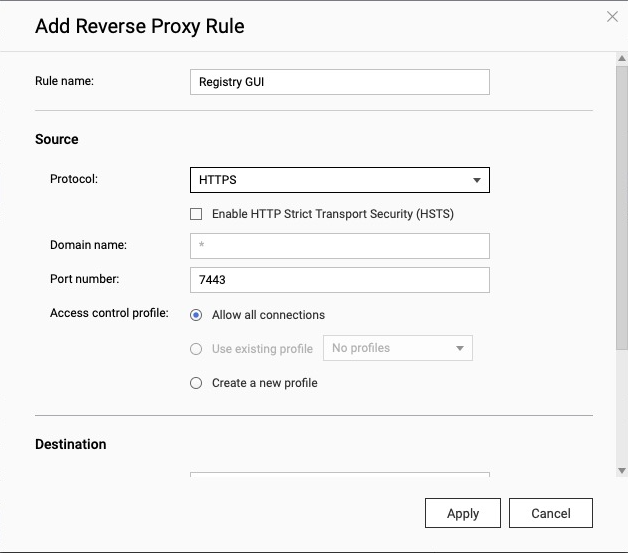
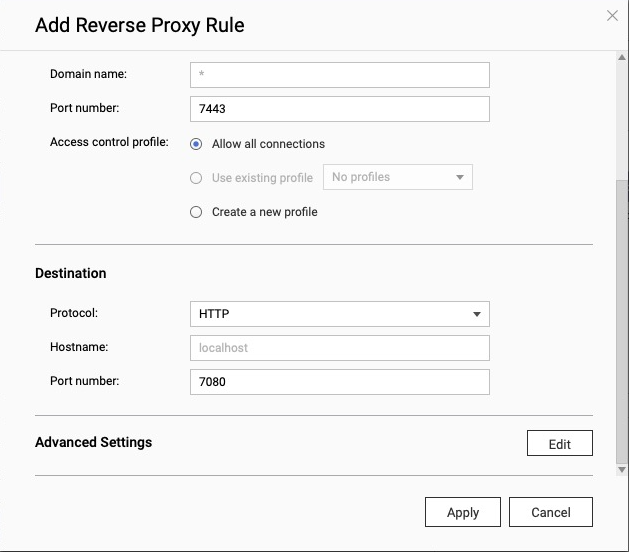
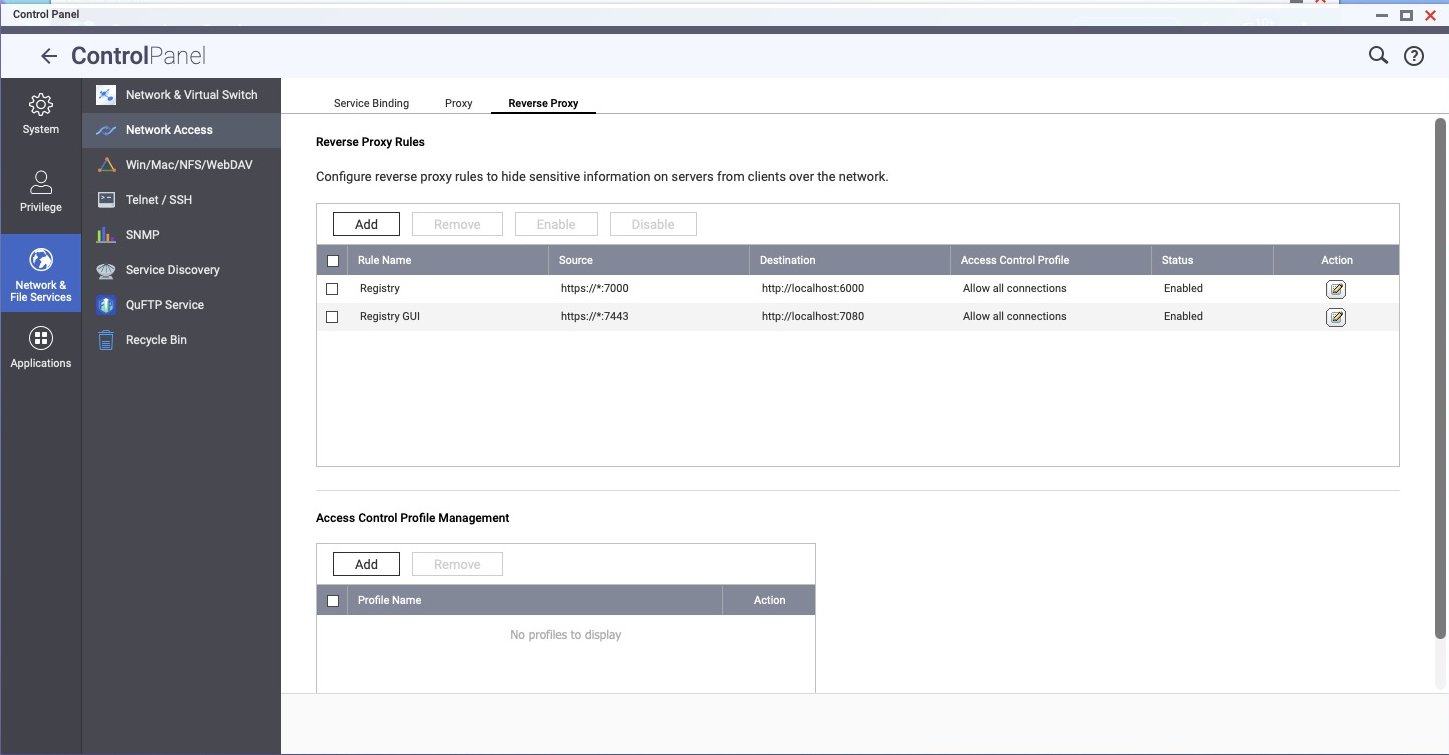
動作確認
ブラウザ
https://ts453be.example.com:7443
ログイン認証ができて
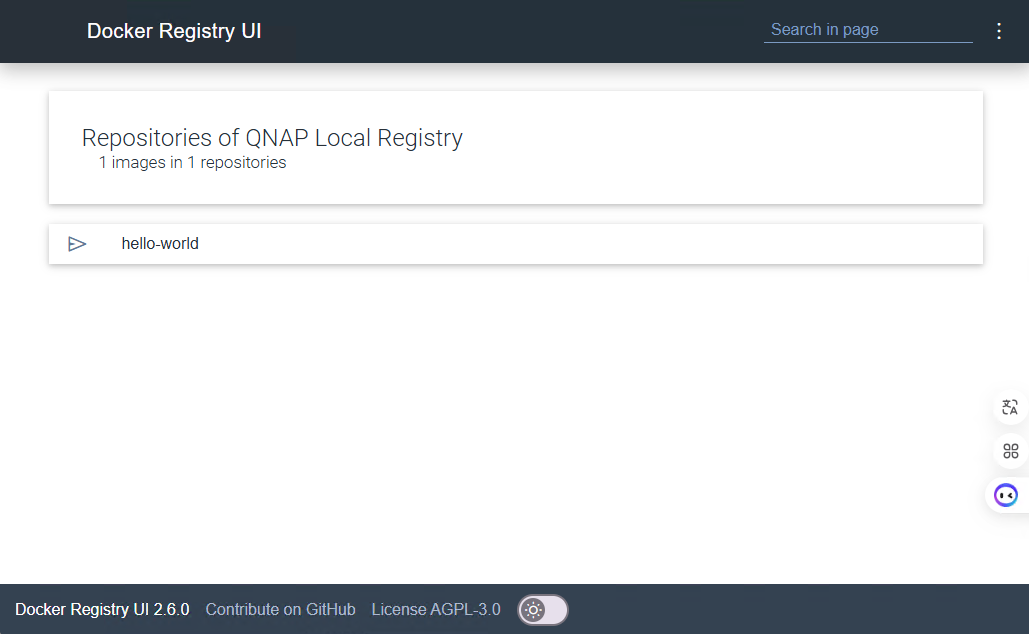
以下のキャプチャでゴミ箱ボタンがあるが、これをクリックしてもすぐに削除されて領域解放されるわけではない。GCをしないと消えない。
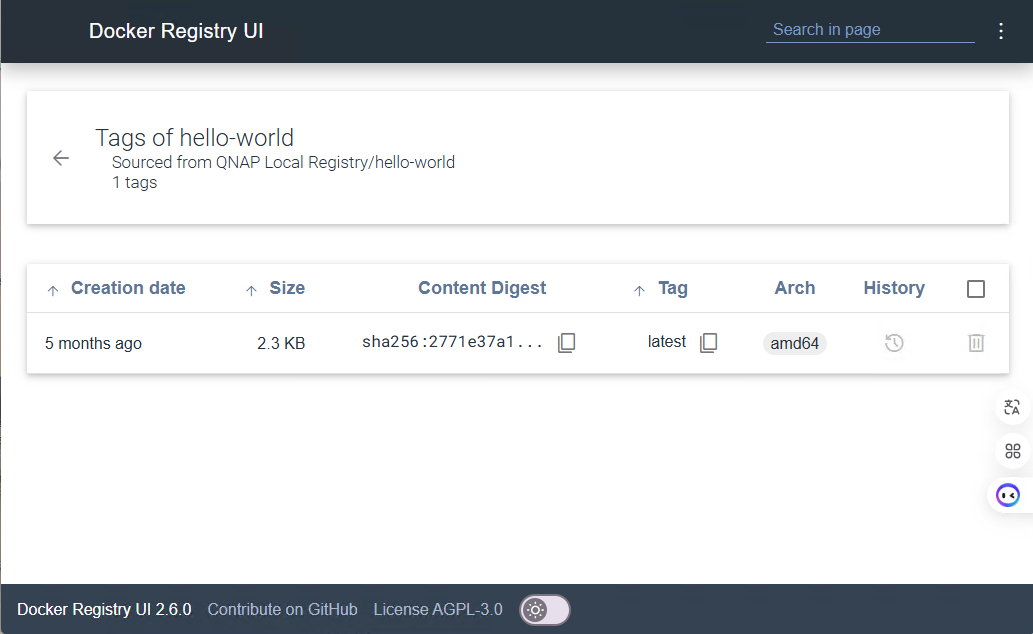
確認できるもの:
-
Repository 一覧
-
Tag 一覧
-
Digest
-
Image サイズ
となる。
さて、最後は、Registryのデータを削除するときなのだが。。。普通には消せず、GCとして消さなければならない。
ただ、ストレージ屋さん的にいうと、重複排除が効くので、思ったほどデータは増えないと思う。
力尽きたので次回で。
追記
Docker Compose / Container StationのApplicationから起動できるようにしたもの。v3.0.0にしてある。
- ディレクトリを作成し、ユーザアカウントを作成
- RegistryとUIのReverse Proxyを作成
- Docker composeで起動させるか、Container StationのApplicationで以下を起動する